
Repeating fixed price
The "Repeating Fixed Price" promotion allows customers to buy a set number of products at a fixed price, with the option to repeat the purchase multiple times in the same order. For example, if 3 T-shirts cost $100, and the promotion is set to repeat 3 times, then buying 6 T-shirts will cost $200, and 9 T-shirts will cost $300.
TIP
This discount type is currently available only on the Genstore platform.
Access your dashboard
- Log In: Enter your store admin panel.
- Go to Apps -> Markivo Discount & Upsell -> Product Discount -> Repeating Fixed Price -> Create.
Set up your campaign
Configure your campaign on the Create page under the Rules tab:
Campaign details
- Name Your Campaign: Choose a unique name that shoppers will see, such as "Fixed price". The name must be within 30 characters, cannot start or end with spaces, and must be unique across the system.
Timing your promotion
Set the Dates: Input the start date and time, such as 20251201 at 12:00 AM. Only the start date is mandatory. If no end date is set, the promotion runs indefinitely. Note that the timezone is locked.
Discount rules
- Trigger condition: Select the condition that triggers the discount, which can be a specific collection or designated products.
- Discount Tiers: You can set discounts based on the quantity of products, with the discount type set to a fixed price. Example:
- Minimum Purchase Quantity: 5 items
- Discount Type: Fixed price
- Discount Value: $100
- Maximum repeating limit on tiered discounts: Set the maximum number of times customers can repeat the purchase. For example, if set to 2, customers can buy the product up to 4 times (2 times at the original price and 2 times at the discounted price).
The result is: Your customers can buy 5 items of the same product for a total of $100, or they can buy 10 items for $200.
Advanced discount settings
You can also enable advanced discount settings, which allow customers to choose which products participate in the wholesale discount. This means customers can select products outside of the specified SKU list. By default, this option is turned off.
Optimize campaign visibility and engagement
This section guides you through enhancing the visual appeal and interactive elements of your promotions. Tailor your campaign’s presentation across different touchpoints to maximize engagement and drive conversions.
Customize your campaign further in the Content tab:
Campaign block
The product detail page includes a discount module that clearly presents promotional details, enhancing customer engagement and purchase intent.
This module allows for extensive personalization, such as the layout, background styling, and cart button texts.
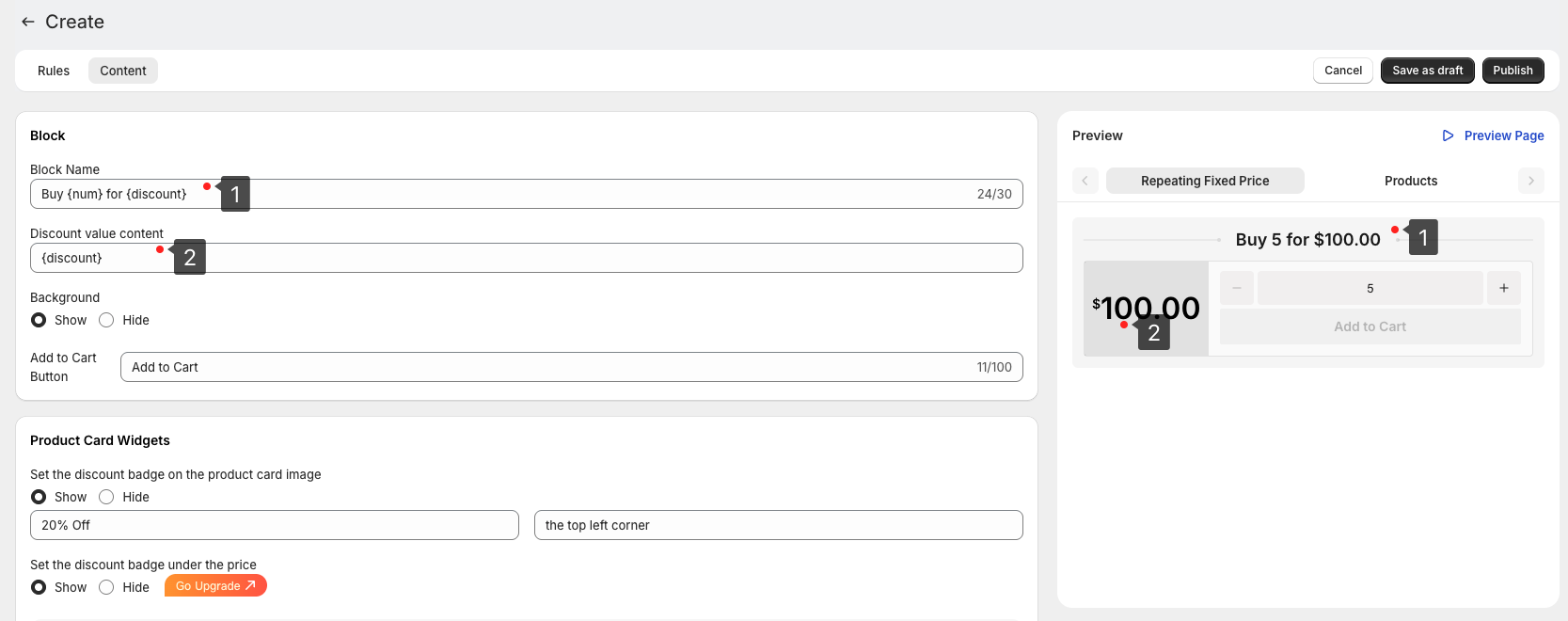
- Tag 1: Modify the Block Name to customize the title for each discount tier.
- Tag 2: Update the Discount value content to provide specific details about the discount.
Product card
You can add promotional badges to product cards at the image corners, below the price, or within the pricing area. Customize the text on these badges to help consumers quickly identify promotional items.
To encourage purchases and draw attention to discounts, we recommend featuring prominent tags on discounted product cards in store search results. This feature can be enabled and customized in the product card widget settings, ensuring customers can easily spot and understand the details of your discounts.
- Tag 1: Add badges to any of the four corners of the product image. You can customize the badge text to highlight specific offers.
- Tag 2: Place a banner badge below the price. You can customize the banner text or upload your own SVG image for a personalized design.
- Tag 3: Include a text badge below the product name. Use concise language or a catchy slogan to describe the product and its deal.
TIP
To keep the discount information clear and uncluttered, we recommend using only one prominent tag on each product card.
Multilingual capabilities
Activate automatic translations to cater to a global audience, enhancing accessibility and market reach.
TIP
Branding Your Promotions: Tailor the look and feel of all promotional elements to align with your brand's aesthetic. For a deep dive into customization options, check out Brand Customization.
Finalize and launch
- Preview: Check your settings in the Preview panel.
- Deploy: Save as Draft for further refinement, or click Publish to launch the campaign and see immediate results.
Additionally, our Data Analysis service provides insights based on sales performance, allowing you to further refine your campaign setup.